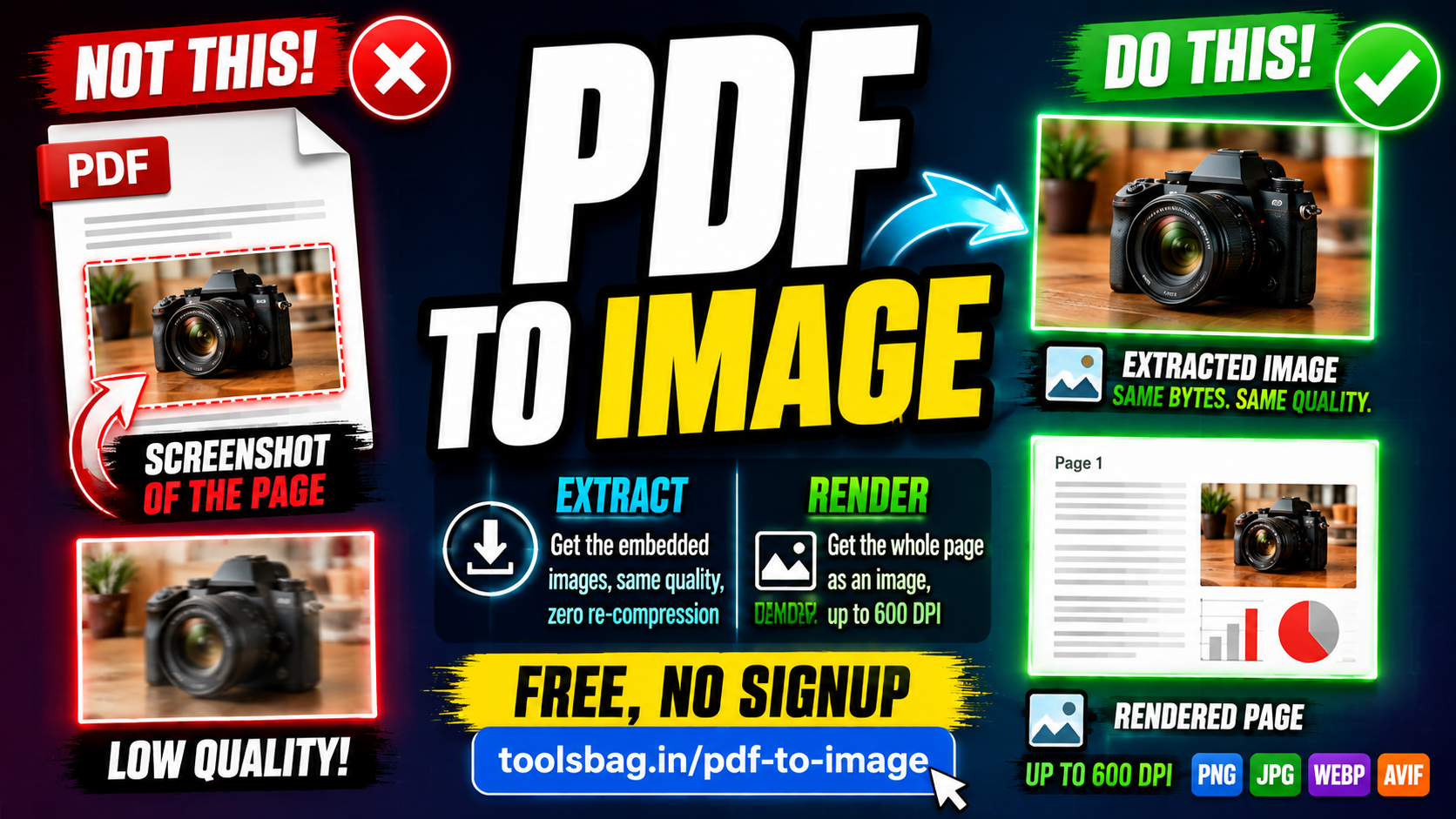
Extract the Real Images From a PDF — Not a Screenshot of the Page
There are two completely different jobs hiding behind “PDF to JPG”, and most tools only do one of them.
Extract means pulling out the pictures already sitting inside the file — the same bytes, untouched. Someone sends a product catalogue and you need the photographs; a scan arrives and you want the original images. Most converters can’t do this at all. They render the page and hand you a screenshot of the picture instead, which is a copy of a copy.
Render means drawing each page as a new image — layout, text and all. That’s the familiar job, and the right one when you want the whole page rather than what’s on it.
ToolsBag keeps them separate, so you pick the one you actually meant.
About that DPI slider
Before converting, the tool reports the highest resolution genuinely present on each page. If a page’s densest image sits at 125 DPI, rendering it at 600 DPI gains you nothing — it’s the same picture with bigger pixels and a much fatter file. Every other converter offers you the slider and lets you discover that afterwards.
What you get
- PNG, JPG, WebP or AVIF output
- Page ranges like
1-3, 7, 12- - Up to 500 pages, downloadable as a ZIP
Free, no signup, no watermark → Try PDF to Image