
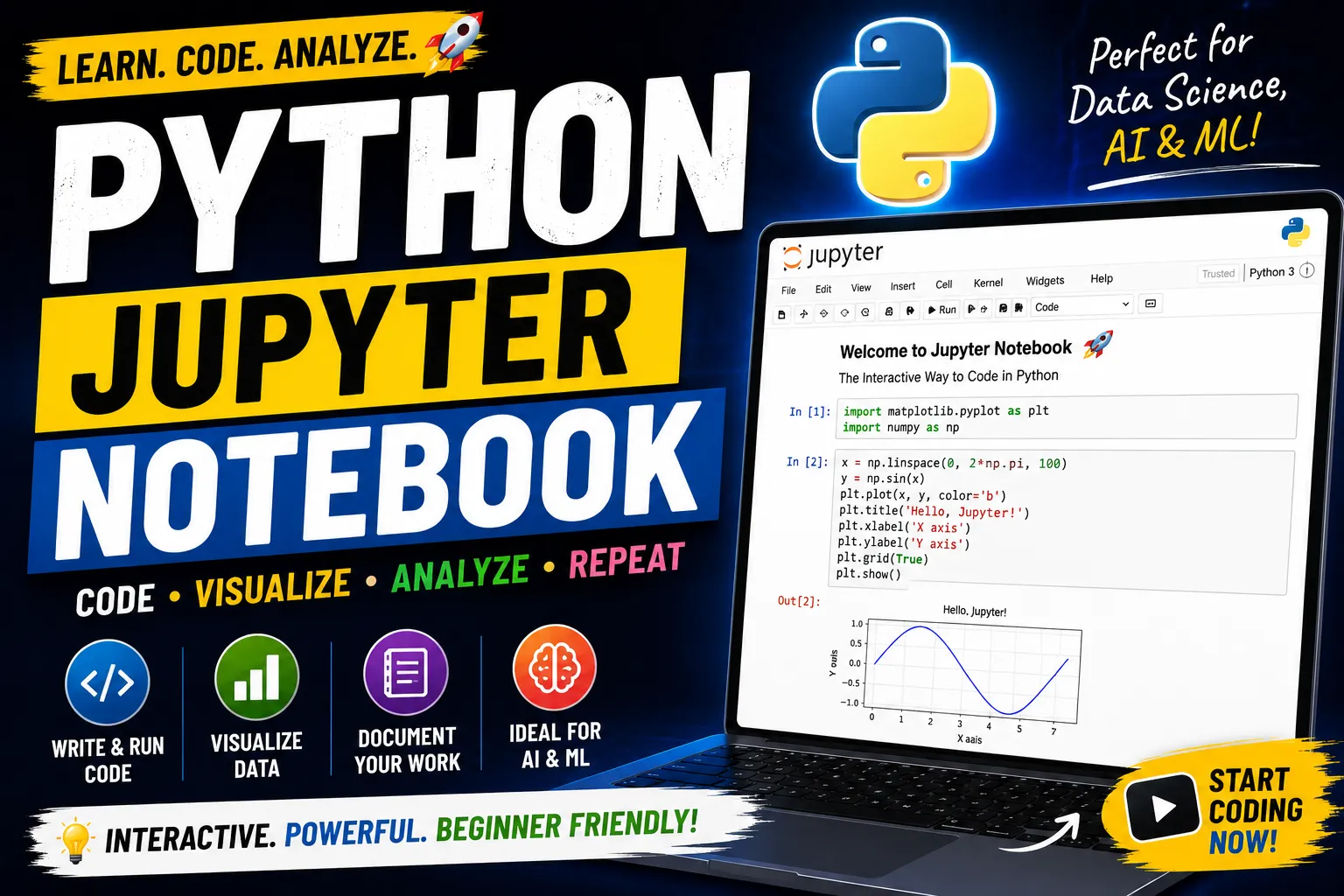
- Why use Jupyter Notebook?
- ? Write and run code one cell at a time.
- ? Display charts, tables, and visualizations.
- ? Combine code, text, images, and equations in one document.
- ? Easier to debug and experiment with code.
- ? The preferred environment for Data Science, Machine Learning, and AI.
- Install Jupyter Notebook using Pip
pip install notebook- Start Jupyter Notebook
jupyter notebookOR
python -m notebookThis will open Jupyter Notebook in your default web browser.
- Create Your First Notebook
- Click New → Python 3 (or your installed Python version).
- In the first cell, type:
print("Hello, World!")2. Press Shift + Enter to run the cell.
Output:
Hello, World!Useful Keyboard Shortcuts
| Shortcut | Action |
|---|---|
| Shift + Enter | Run current cell |
| Ctrl + Enter | Run cell without moving |
| A | Insert cell above |
| B | Insert cell below |
| D, D | Delete selected cell |
| M | Convert to Markdown |
| Y | Convert to Code |