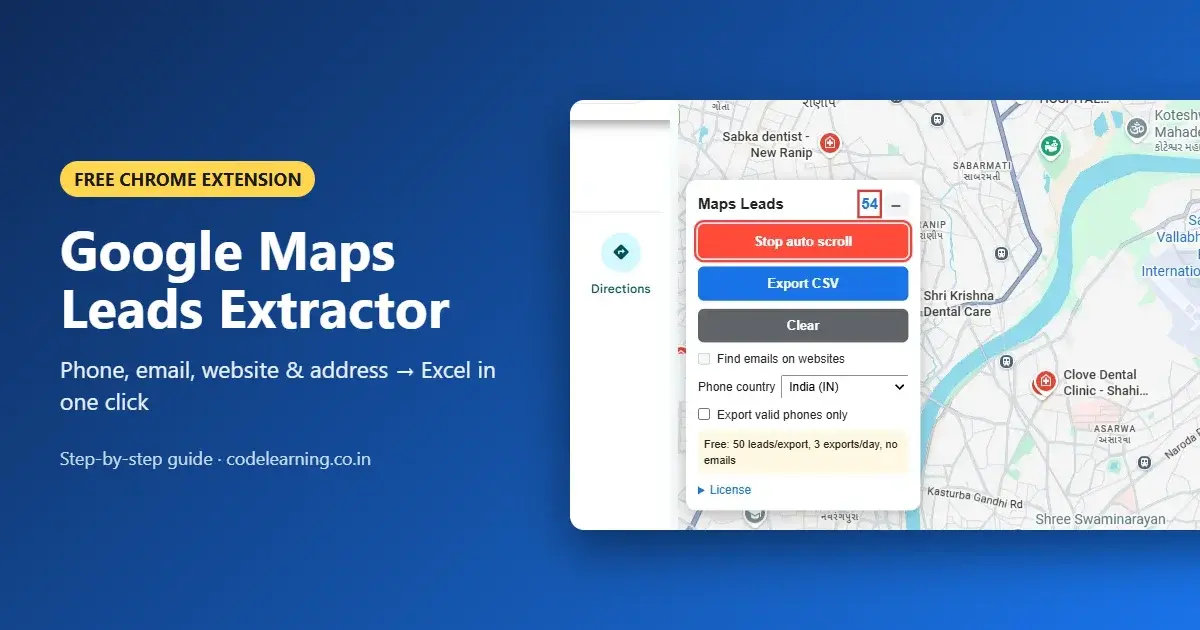
Need a list of local businesses with phone numbers, emails, websites and addresses? Copying them one by one from Google Maps takes hours. Maps Leads is a Chrome extension that collects Google Maps search results for you and exports them to a CSV file you can open in Excel or Google Sheets.
This guide shows you how to install it, collect your first leads, find emails, clean phone numbers and export everything, step by step.
In this guide
- What is Maps Leads?
- Features
- How to install the extension
- How to extract leads from Google Maps
- How to export Google Maps data to Excel (CSV)
- Find emails and validate phone numbers
- Free vs Pro plan
- How to activate Pro
- How to update to a new version
- Tips for better results
- Troubleshooting
- FAQ
What is Maps Leads?
Maps Leads is a lightweight Google Maps scraper Chrome extension. You search on Google Maps as usual (for example "dentist in Ahmedabad"). The extension adds a small panel next to the results, scrolls the list for you, and saves every business it sees. When you are done, one click downloads all leads as a CSV file.
It is useful for:
- Freelancers and agencies looking for clients (web design, SEO, digital marketing)
- Sales teams building B2B lead lists for a city or area
- Distributors and wholesalers finding shops and dealers
- Researchers doing local market surveys
Features
- Auto scroll: loads the full results list without manual scrolling.
- Rich data: name, category, address, phone, website, rating, review count, latitude/longitude, Google place ID and opening hours for each day.
- Email finder (Pro): visits each business website and picks up email addresses.
- Phone validation: checks every number, converts it to international format (e.g.
+919825226307) and marks it as mobile or landline. - Duplicate removal: the same business is never saved twice.
- Excel-friendly CSV: opens correctly in Excel, including Hindi, Gujarati and other non-English names.
- Private: your leads stay in your browser. Nothing is uploaded to our server.
Step 1: How to install the Maps Leads Chrome extension
Maps Leads is installed as an "unpacked" extension. It takes about two minutes.
- Join our Telegram channel and download the latest
maps-leadszip file from the pinned post. Unzip it and move the
maps_leads_extfolder to a permanent place, such as your Documents folder.Important: do not delete this folder after installing. Chrome loads the extension from it every time.
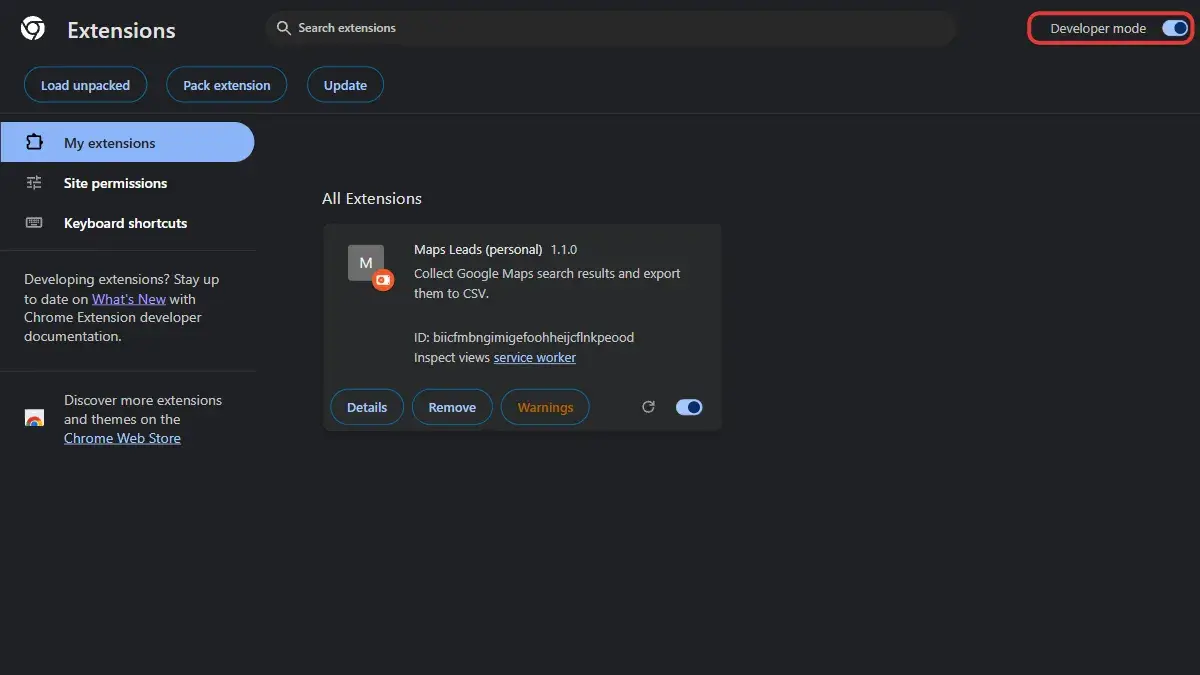
- Open Chrome's extensions page. Type
chrome://extensionsin the address bar and press Enter. Turn on Developer mode using the switch in the top-right corner.
Click "Load unpacked" and select the
maps_leads_extfolder.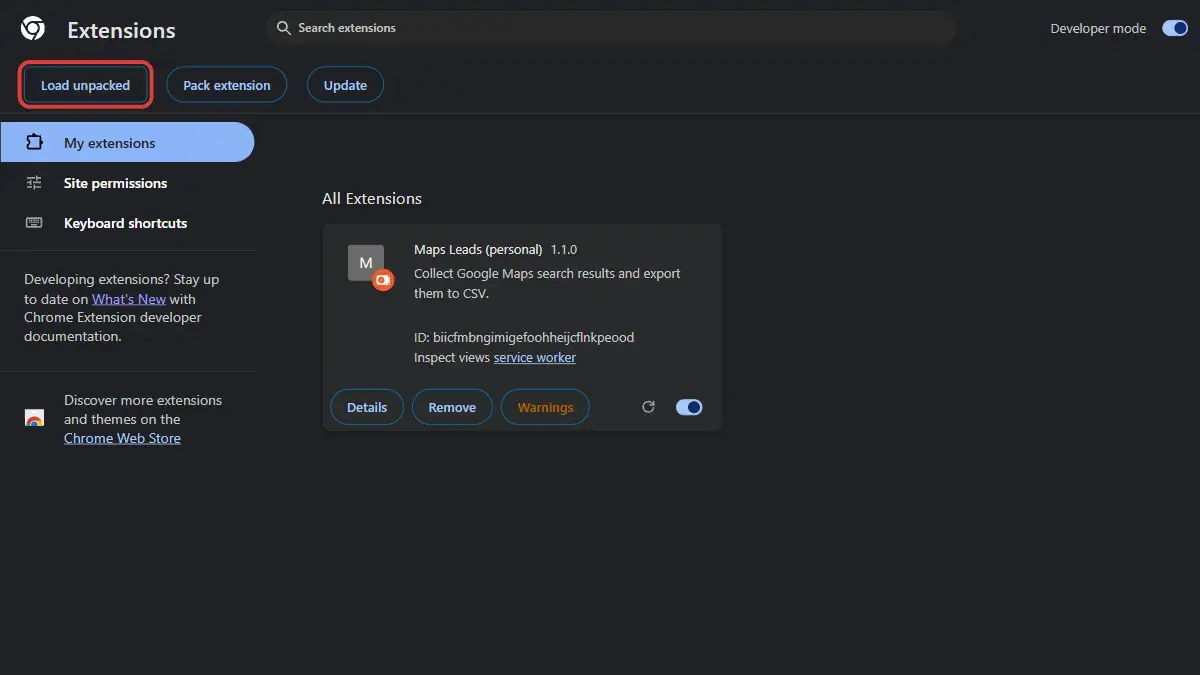
- Pin it (optional): click the puzzle icon in the Chrome toolbar and pin Maps Leads so it is easy to find.
Done. The extension is installed.
Step 2: How to extract leads from Google Maps
- Open Google Maps in Chrome.
- Search for a business type and place, for example "CA firm in Pune" or "restaurants in Surat".
Find the Maps Leads panel. It appears right next to the results list. The number beside the title shows how many leads have been collected so far.
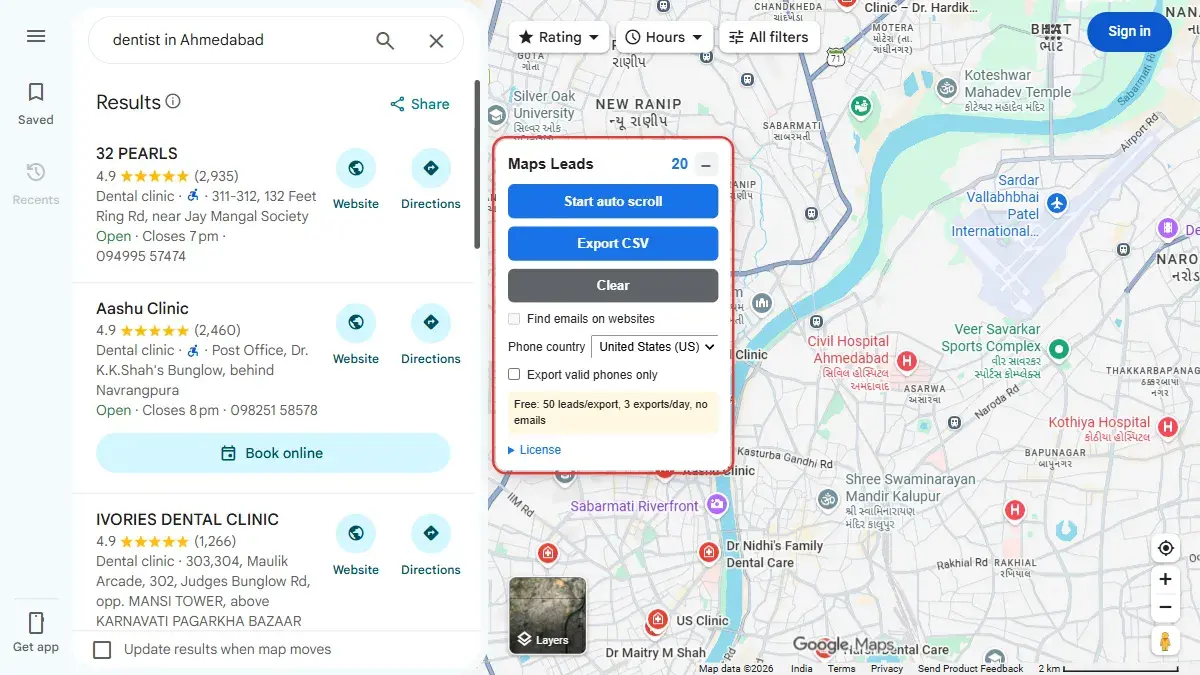
Click "Start auto scroll". The extension scrolls the results list slowly and collects every business. Watch the counter go up.
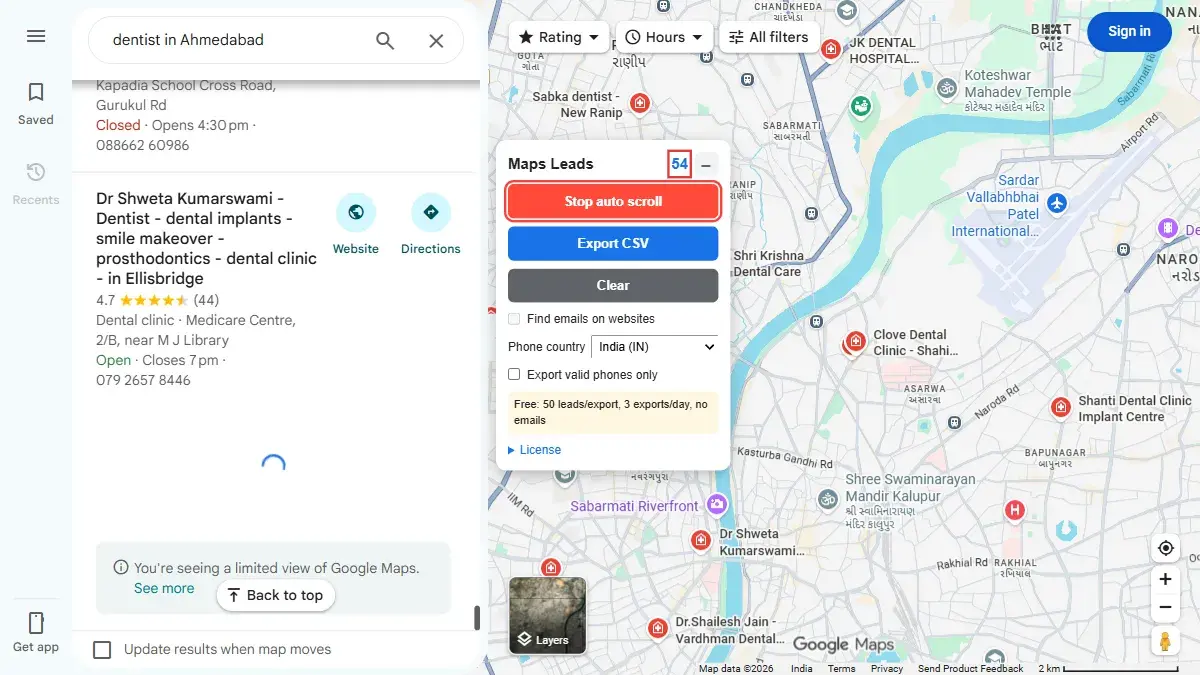
- Wait for it to finish. It stops by itself when Google Maps shows "You've reached the end of the list". You can also click "Stop auto scroll" at any time.
Tip: run more searches without clearing. Leads from every search are added to the same list, and duplicates are skipped. Click "Clear" when you want to start a fresh list.
The panel can be collapsed with the – button if it covers the map. Click + to open it again.
Step 3: How to export Google Maps data to Excel (CSV)
- (Optional) Tick "Export valid phones only" to skip businesses with missing or wrong phone numbers.
Click "Export CSV".
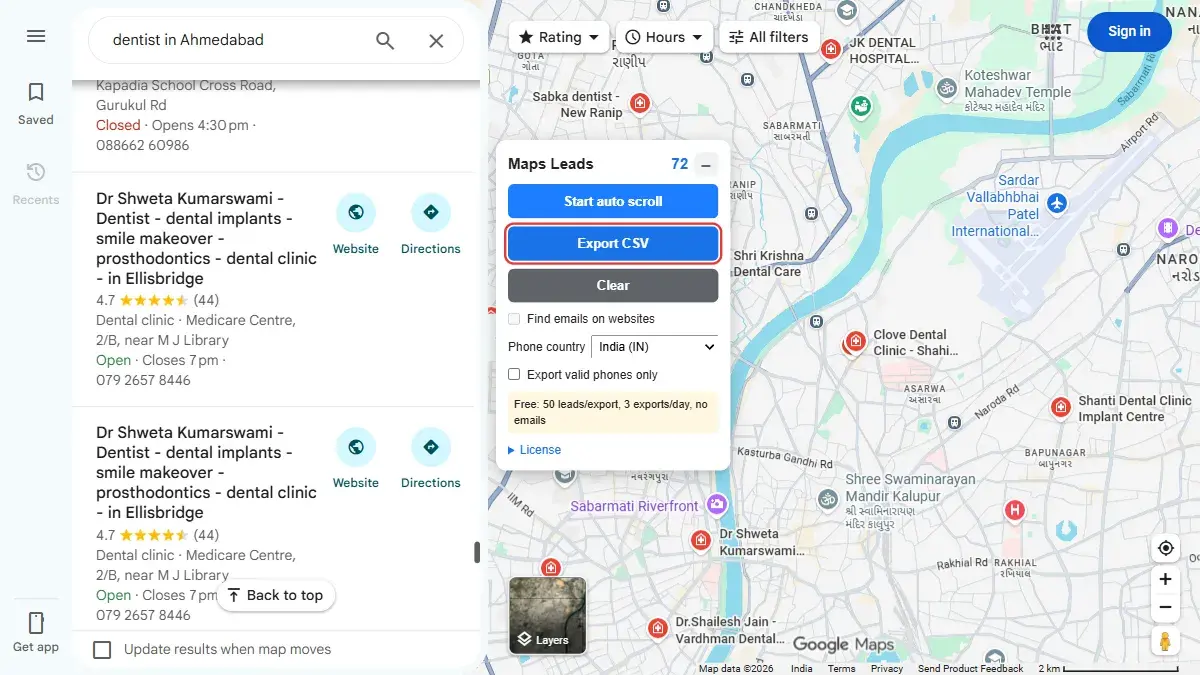
- A file named like
maps-leads-2026-11-13.csvis downloaded. Open it in Excel, or upload it to Google Sheets (File → Import).
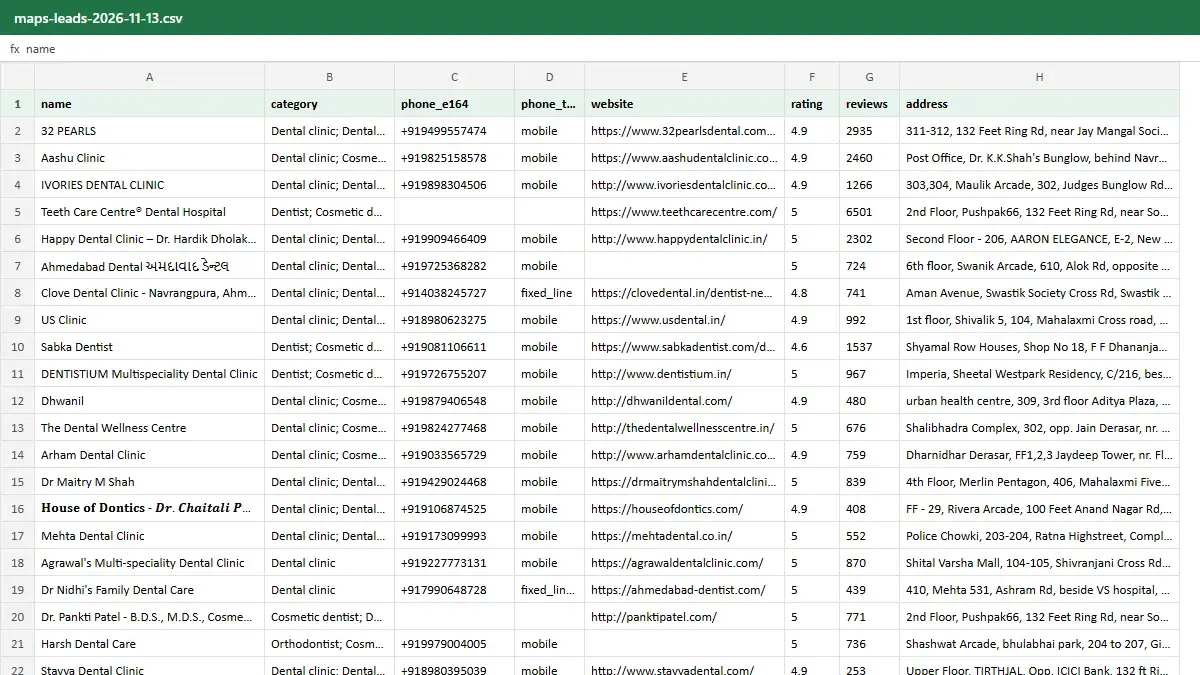
Columns in the CSV file
| Column | What it contains |
|---|---|
| name | Business name |
| category | Business type, e.g. "Stationery store" |
| address | Full address |
| phone | Phone number as shown on Google Maps |
| website | Business website |
| Emails found on the website (Pro) | |
| rating / reviews | Star rating and number of reviews |
| latitude / longitude | Exact map location |
| place_id | Google's unique ID for the place |
| hours_Monday … hours_Sunday | Opening hours for each day |
| phone_valid | yes / no: is the number valid |
| phone_e164 | Number in international format, ready for WhatsApp or a dialer |
| phone_type | mobile, fixed line, etc. |
| phone_country | Country of the number |
Step 4: Find emails and validate phone numbers
Find emails on websites (Pro)
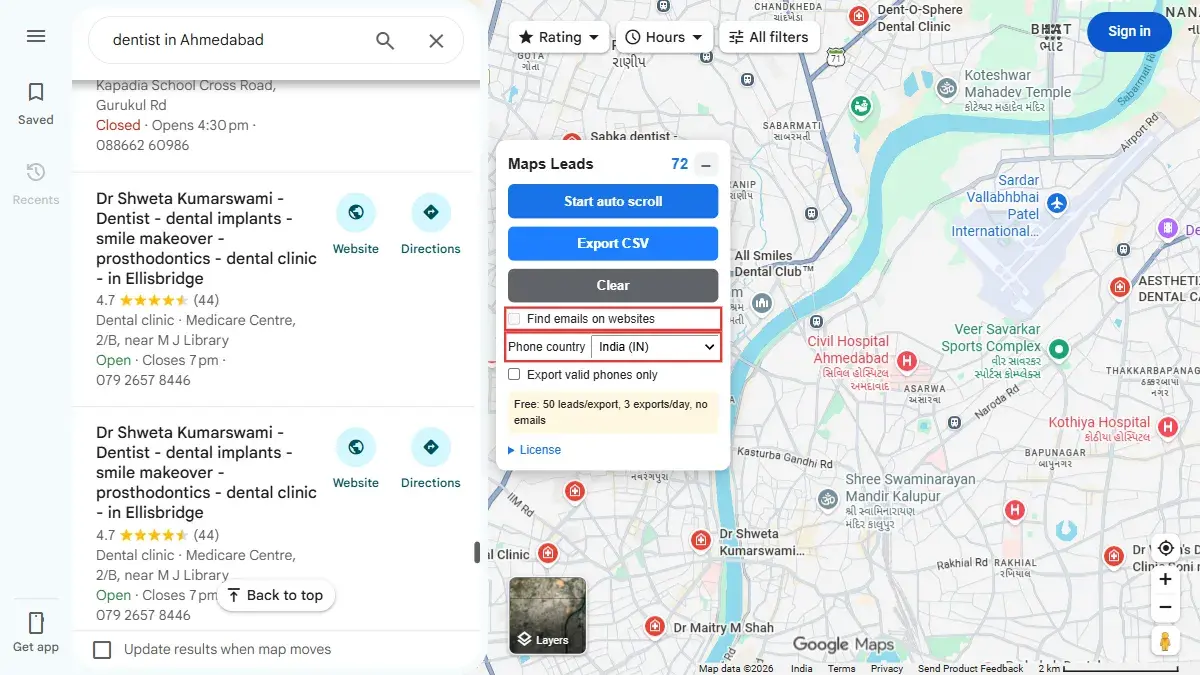
Keep "Find emails on websites" ticked. For every business that has a website, the extension opens the site in the background and reads any email addresses on it. They appear in the email column. Businesses without a website will have no email.
Choose the phone country
Pick your country in "Phone country" (for India choose India (IN)). Local numbers like 098252 26307 are then read correctly and converted to +919825226307. If you change the country later, numbers already collected are re-checked automatically.
Free vs Pro plan
| Free | Pro | |
|---|---|---|
| Collect leads with auto scroll | Yes | Yes |
| Phone validation | Yes | Yes |
| Leads per export | 50 | Unlimited |
| Exports per day | 3 | Unlimited |
| Email finder | No | Yes |
Your current plan is shown inside the panel, for example "Pro until 31/12/2026".
Step 5: How to activate Pro
- In the panel, click License to open it.
Click Copy next to your PC ID (looks like
3F9A-1C2B-77D0).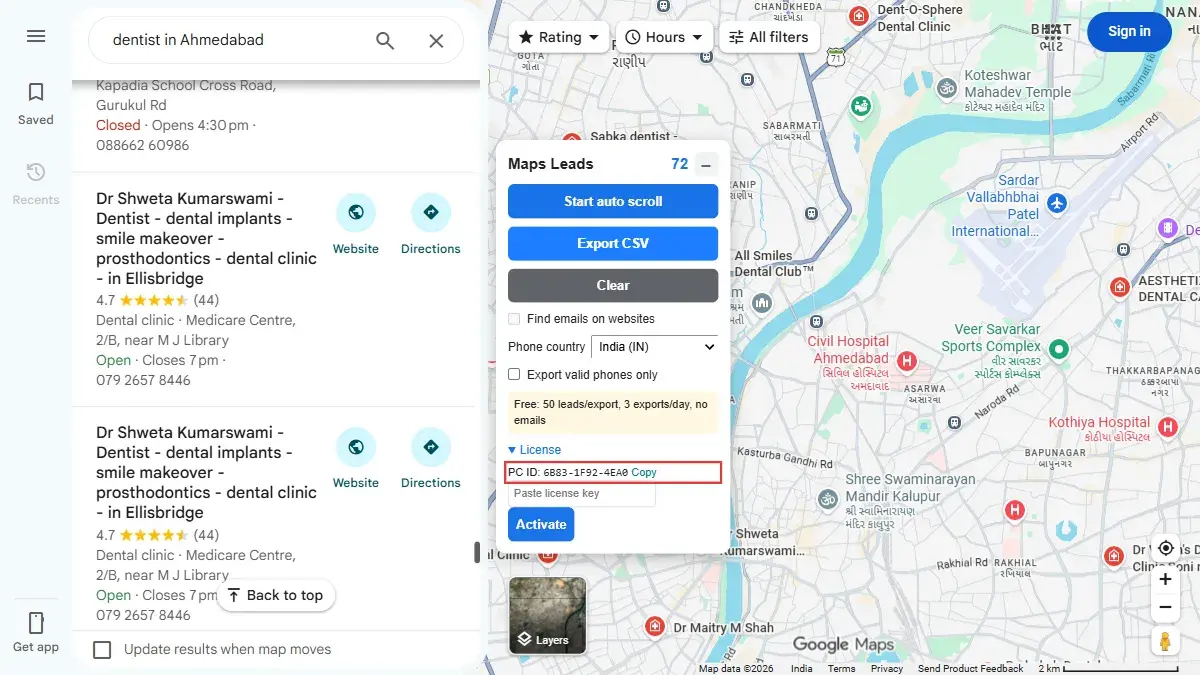
- Send your PC ID to 7 Horse: Chat on WhatsApp or Chat on Telegram. We will share the payment details and send your license key.
You will receive a license key. Paste it in the "Paste license key" box and click Activate.
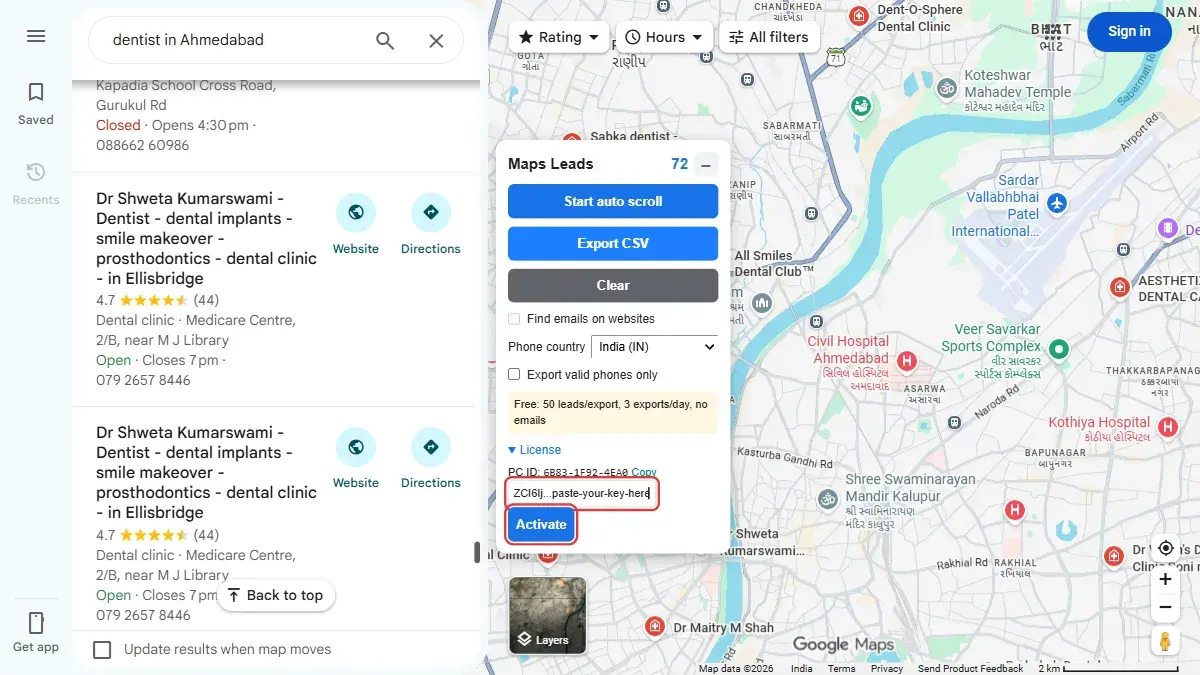
Note: a key works only on the PC and install it was made for. If you remove and reinstall the extension, your PC ID changes, so message us on WhatsApp or Telegram for a new key.
How to update to a new version
- Download the new version from our Telegram channel (we post every update there) and replace the old
maps_leads_extfolder with the new one, in the same location. Go to
chrome://extensionsand click the reload icon on Maps Leads.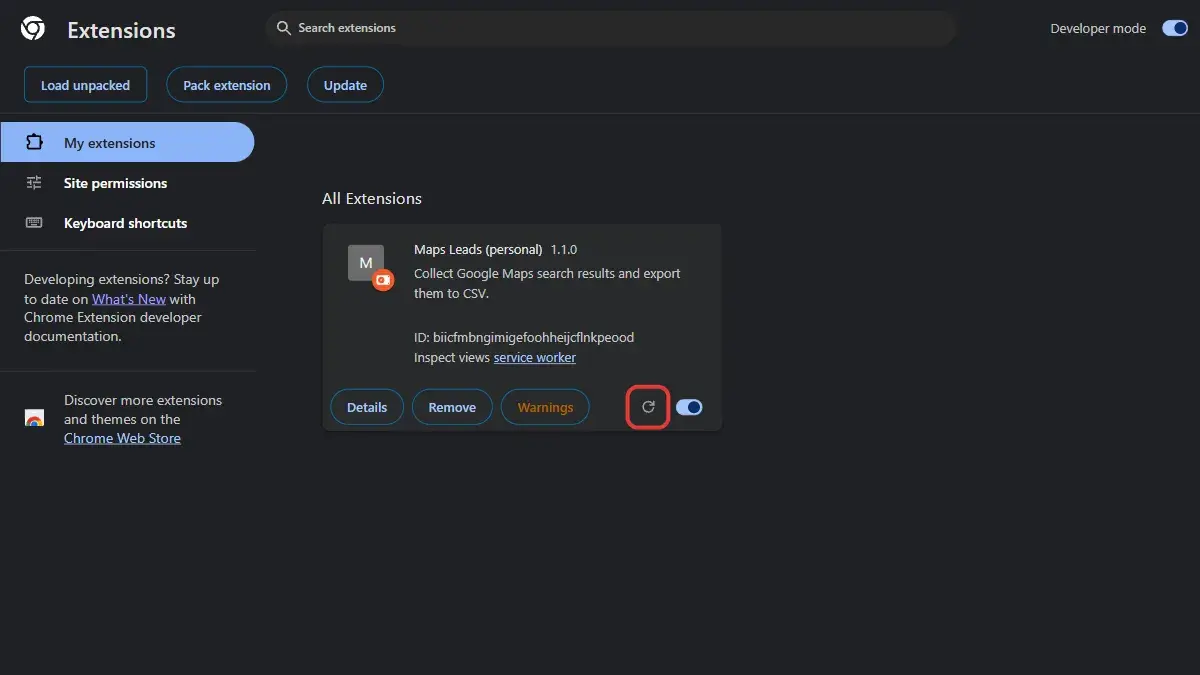
Your license stays active after an update. Do not click "Remove", because that resets your PC ID.
Tips for better results
- Search small areas. Google Maps shows around 120 results per search. "Dentist in Andheri West" gives you more total leads than "dentist in Mumbai". Run one search per area and collect them all into one list.
- Zoom the map to the area you want before searching. Results follow the visible map.
- Try related keywords: "dental clinic", "dentist" and "orthodontist" return different businesses.
- Keep the tab visible while auto scroll runs. Chrome slows down background tabs.
- Use "Export valid phones only" for calling and WhatsApp campaigns.
Troubleshooting
The panel does not appear
- Make sure the extension is turned on at
chrome://extensions. - Reload the Google Maps tab (press F5).
- Use the normal
google.com/maps(orgoogle.co.in/maps) page, not the Maps app or embedded maps.
"Search something first so the results list appears"
Auto scroll needs the results list on the left. Search for a business type, not a single address.
Lead count stays at 0
Reload the page after installing the extension, then search again.
Email column is empty
The email finder works only on the Pro plan and only for businesses that have a website with an email address on it.
"This key is for a different PC"
The key was made for another PC ID. Check the PC ID in the License section and send it to us for the right key.
Use it responsibly
Maps Leads only reads information that businesses publish publicly. Even so, follow Google's terms, respect privacy and anti-spam laws in your country (for example India's DPDP Act, GDPR in Europe), and do not send bulk messages to people who did not agree to receive them. Good lead generation is about relevant, personal outreach.
Frequently Asked Questions
Is Maps Leads free?
Yes, there is a free plan: 50 leads per export and 3 exports per day. Pro removes the limits and adds the email finder.
Can I export Google Maps results to Excel?
Yes. Click "Export CSV" and open the file in Excel or Google Sheets. Non-English names display correctly.
Does it get email addresses from Google Maps?
Google Maps does not show emails. With Pro, the extension visits each business website and collects emails from there.
Is my data sent anywhere?
No. All leads stay in your Chrome browser until you export them.
Does it work in Edge or Brave?
It is built for Chrome. Chromium browsers like Edge and Brave can load unpacked extensions the same way, but they are not officially tested.
How many leads can I get from one search?
Google Maps usually lists up to about 120 places per search. Run several searches for smaller areas to build bigger lists.
Conclusion
With Maps Leads you can turn any Google Maps search into a clean lead list in minutes: install, search, auto scroll, export. Start with the free plan, and upgrade to Pro when you need emails and unlimited exports.
Join our Telegram channel to download Maps Leads →
Questions or need Pro? Contact 7 Horse: Chat on WhatsApp or Chat on Telegram.